📋 In This Article
Disclosure: This article contains affiliate links. I may receive a commission or bonus if you sign up through my link. I only recommend tools I personally test and use at Tryamba.
QUICK ANSWER — HOW TO START A BLOG IN 2026
Time required: 15–20 minutes for technical setup. First article: 1–3 hours.
Cost: From $1.99/month (Hostinger) + free WordPress. First year total: under $30.
Technical skill needed: None. If you can send an email, you can start a blog today.
What you need first: A niche, a domain name idea, and a Hostinger account. That is it.
You Are Already Closer Than You Think
If you have spent weeks thinking about starting a blog but keep getting stuck on where to begin — this guide was written exactly for you. After four years of running Tryamba and helping thousands of beginners launch their first blog, I can tell you this with complete confidence: starting a blog in 2026 is genuinely simple.
What is not simple — and what almost every other “how to start a blog” guide skips entirely — is what you do before you write your first article. I am talking about keyword research. This one step separates blogs that get Google traffic within three months from blogs that publish for a year and get nothing. I will walk you through it in detail in Step 2.
First, here is the complete roadmap we are following:
📋 What This Guide Covers — 11 Steps
- Choose your niche and domain name
- Validate your niche with keyword research (Semrush) ← most guides skip this
- Buy your hosting plan (Hostinger)
- Activate your free domain
- Install WordPress in two clicks
- Log in to your WordPress dashboard
- Choose your theme
- Install 4 essential plugins
- Plan your first 10 articles using keyword data
- Write and publish your first post
- Set up Google Search Console
What You Will Need (Genuinely Not Much)
- A laptop or desktop computer — mobile works, but a laptop makes the setup faster
- A credit or debit card — Hostinger starts from $1.99/month. Under one coffee.
- 15 to 20 minutes of quiet time — close other tabs and follow each step in order
- A rough blog topic — food, travel, finance, parenting, digital marketing — anything you care about
- A blog name idea — short and memorable. We will cover this in Step 1.
No coding. No design degree. No technical background. Let us begin.
Step 1: Choose Your Blog Niche and Domain Name
Part A — Choose Your Niche
Your niche is the specific topic your blog focuses on. It determines your audience, your content calendar, your income potential, and whether Google treats you as an authority or a generalist.
The most common beginner mistake is going too broad. A “general lifestyle blog” competes with everyone and wins with no one. The more specific your niche, the faster you build a loyal audience who trusts you — and the faster Google starts ranking your content.
Three questions to find your niche right now:
- What topic could you write 50 articles about without running out of ideas?
- Are people actively searching for help with this topic? (We will verify this in Step 2.)
- Does this niche have monetization potential through affiliate products, courses, or services?
Part B — Choose Your Domain Name
Your domain name is your blog’s address on the internet — like tryamba.com. Think of it as your home address on the web. It needs to be easy to remember, easy to spell, and relevant to your niche.
The good news: Hostinger includes a free domain name for the first year with all annual plans. You do not need to buy one separately.
Three quick rules for choosing a great domain:
- Keep it short — 1 to 3 words maximum. Short names are easier to share, type, and brand.
- No numbers or hyphens — “best-blog-tips.com” is harder to say aloud than “bestblogtips.com”
- Go .com first — the most recognised extension globally. If your .com is taken, .net or a niche extension works.
Step 2: Validate Your Niche With Keyword Research — Do Not Skip This
This is the step every other “how to start a blog” guide skips. And it is the single reason most new blogs publish for 12-18 months and get almost no traffic.
Here is the uncomfortable truth: you can write the most perfectly crafted article in the world — and if nobody is searching for that topic on Google, nobody will find it. Publishing without keyword research is like opening a physical shop on a street with zero foot traffic. The shop might be excellent. No one walks past.
The Traffic Timeline Difference
❌ Without Keyword Research
- Write articles on topics you feel are interesting
- Publish consistently for months
- Check Google Search Console: single-digit clicks
- Traffic arrives after 12–18 months, if ever
- Give up before the blog earns anything
✅ With Keyword Research
- Identify topics people actively search for
- Target low-competition keywords new blogs can rank for
- Google traffic starts in 3–6 months
- Each article builds on the last (content cluster)
- Blog earns income before year one ends
The One Rule Every New Blogger Must Know
When your blog is brand new, you have zero domain authority. That means you cannot compete for high-volume, high-competition keywords — regardless of how good your writing is. A new blog going after “how to make money online” (KD% 78%) is like a debut author trying to outsell Stephen King on launch day.
The rule: target keywords with KD% (Keyword Difficulty) under 30 when starting out.
These are searches that real people are making, but that established sites have not fully dominated. A new blog can rank in the top 10 for these keywords within three to six months with well-written content. That early traffic builds domain authority, which allows you to target harder keywords as your blog grows.
How to Do Keyword Research With Semrush — Step by Step
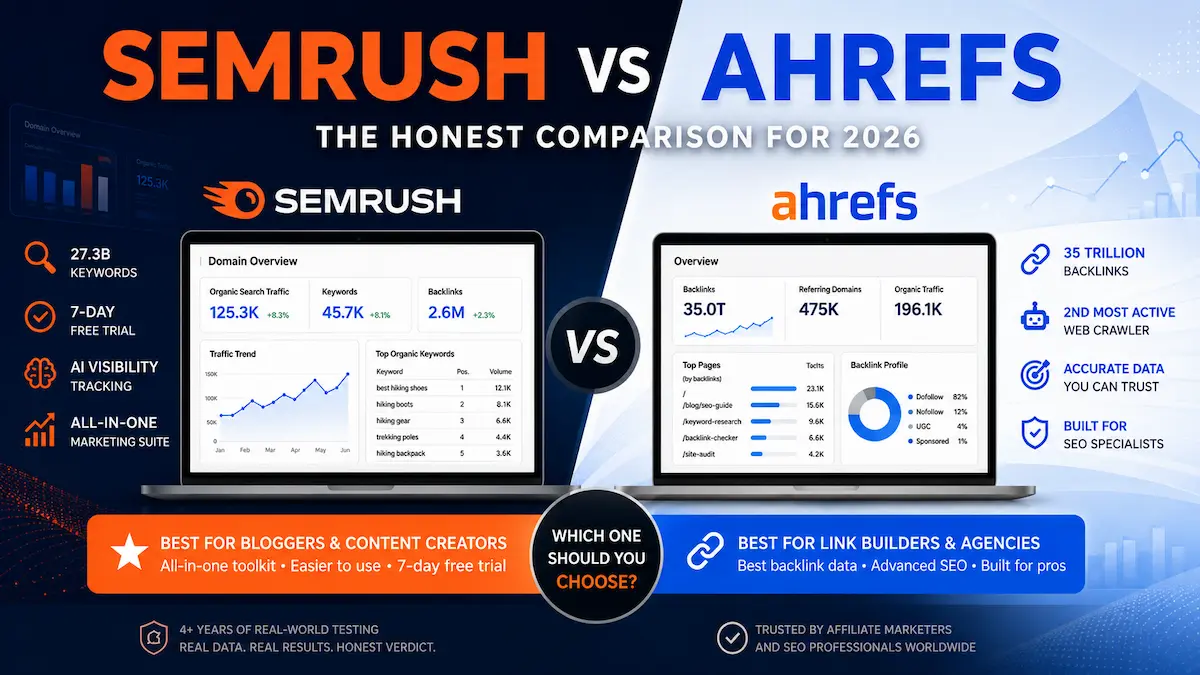
The tool I use at Tryamba every single day for keyword research is Semrush — specifically the Keyword Magic Tool. It contains over 27.3 billion keywords across 130+ countries and shows you exactly which topics are worth writing about for a new blog.
Here is the exact process:
Step 2a — Start a Free Trial
Semrush offers a 7-day fully-featured free trial. No charge until Day 8. Use it to complete your initial keyword research before your blog even launches.
7 days full access · No charge until Day 8 · Cancel any time · Verified May 2026
Step 2b — Open the Keyword Magic Tool
After logging in, go to Keyword Research → Keyword Magic Tool in the left sidebar. This is your main research workspace.
Step 2c — Type Your Seed Keyword
Enter a broad topic related to your niche. Do not overthink this — it is just a starting point. Examples:
- If your niche is personal finance: “save money”
- If your niche is cooking: “easy dinner recipes”
- If your niche is parenting: “toddler activities”
- If your niche is digital marketing: “affiliate marketing for beginners”
Step 2d — Apply These Exact Filters
| Filter | Setting | Why |
|---|---|---|
| KD% (Keyword Difficulty) | 0 — 29 | New blogs can realistically rank here |
| Volume | 100 minimum | Enough searches to drive meaningful traffic |
| Intent | Informational | Tutorial and guide content — best for new blogs |
Step 2e — Read the Results
Semrush will show you a list of keywords matching your filters. For each keyword, look at:
- Volume: How many monthly searches. 200–2,000 is ideal for a new blog.
- KD%: Under 30 means you can realistically rank. Under 15 means you can rank quickly.
- SERP Features: Is there a featured snippet or FAQ box? These are opportunities to appear above regular results.
Step 2f — Save Your Keyword List
Select 10 to 15 keywords that fit the criteria above. These become your first articles. Export them to a spreadsheet — this is your content calendar. Every article you write for the next three months should come from this validated list.
Want a deeper look at the Keyword Magic Tool? Read my step-by-step Semrush Keyword Magic Tool guide — it covers every filter and advanced feature in detail.
📧 Get My Free Blogger Starter Pack — 4 Resources Instantly
Free on subscribe: SEO Launch Checklist, AI Article Prompt Pack, Social Media Caption Pack, and Google Ranking Cheat Sheet.
Plus weekly hosting deals, SEO tips, and exclusive tool discounts — all free.
Step 3: Buy Your Hosting Plan
Hosting is the service that stores your blog’s files and keeps your website available 24 hours a day, 365 days a year. Think of it like renting a shop space — your content lives there, and hosting makes sure the door is always open for visitors.
Your hosting choice directly affects your Google rankings, page load speed, and Google Ads earnings. A slow host means slower rankings. A reliable host means visitors stay longer, bounce less, and click more.
Why I Recommend Hostinger for New Bloggers
After four years of running Tryamba on Hostinger’s Business plan, here is why I recommend them to every beginner:
- Free domain for the first year — saves $12–15 upfront
- Free lifetime SSL certificate — the padlock icon Google and visitors require for trust
- LiteSpeed servers — roughly 2x faster than Apache-based hosts at the same price
- One-click WordPress installation — no technical setup whatsoever
- Beginner-friendly hPanel — the cleanest hosting control panel I have ever used
- Free website migration — if you have a blog elsewhere, they move it for free
- 24/7 live chat support — real humans, under 3 minutes response time
- 30-day money-back guarantee — full refund if you are not satisfied
Which Hostinger Plan to Choose
| Plan | Price | Websites | Best For |
|---|---|---|---|
| Premium | From $2.99/mo | 100 | Single blog, starter |
| Business ⭐ | From $3.99/mo | 100 | Recommended — daily backups included |
| Cloud Startup | From $9.99/mo | 300 | High-traffic sites, later upgrade |
My recommendation: Business plan. The daily automated backups alone justify the small price difference over Premium. Losing months of content because of an accident is a risk not worth taking for a few dollars per month.
Free domain · Lifetime SSL · 30-day money-back · Verified May 2026
Want to save even more? Check the current Hostinger coupon code — additional discount applies automatically through the Tryamba link.
Honest Alternatives
Hostinger is not the only option. Here is a quick honest assessment:
- Namecheap — best if you want the absolute lowest combined domain + hosting cost. Weaker on performance vs Hostinger. Check the Namecheap promo code for the current .com price.
- NameHero — excellent LiteSpeed performance for US-targeted sites with cPanel preference. Read my NameHero review for the honest speed data.
- SiteGround — premium quality but 3-4x Hostinger’s price. Worth considering once your blog earns enough to justify the cost.
How to Sign Up for Hostinger
- Click the link above and select Web Hosting
- Choose Business plan (recommended) or Premium
- Select your billing period — 12, 24, or 48 months. Longer = lower monthly price
- Enter your desired domain name in the free domain field and check availability
- Complete checkout — confirmation email arrives within minutes
Step 4: Activate Your Free Domain
After your Hostinger purchase is complete, your free domain needs one activation step inside your dashboard. This takes about 60 seconds.
- Log in to hpanel.hostinger.com with your new account details
- From the main dashboard, click Claim Domain
- Type your chosen domain name and click Search
- Select your .com (or preferred extension) and click Continue
- Fill in your registration details and click Register Domain
Step 5: Install WordPress — Two Clicks
This is the part most people think is complicated. It is not. It takes two clicks.
WordPress is the software that powers your blog — think of it like the operating system of a smartphone. It is what lets you write posts, upload images, manage your design, and run your entire blog without touching a single line of code. Over 43% of all websites on the internet run on WordPress. It is free, endlessly customisable, and trusted by everyone from hobby bloggers to global news outlets.
How to Install WordPress Through Hostinger
- From hPanel, click Websites in the top navigation
- Click Add Website, then select WordPress
- Choose your domain from the dropdown menu
- Fill in your blog title, admin username, and a strong password. Save these somewhere safe — you need them every time you log in.
- Click Install. Wait 60 seconds.
✅ Milestone: Technical Setup Complete
WordPress is installed. Your blog is live on the internet. Everything from this point forward is visual and click-based — no technical knowledge required.
Step 6: Log in to Your WordPress Dashboard
Your WordPress dashboard is your blog’s command centre. This is where you write posts, manage your design, install plugins, and control everything about your blog.
- Open your browser and go to: yourdomain.com/wp-admin
- Enter the username and password you created during installation
- Click Log In
The main areas you will use most:
- Posts — write and manage your blog articles
- Appearance → Themes — change how your blog looks
- Plugins — add features and tools
- Settings — configure your blog’s basic details
Step 7: Choose Your Theme
Your WordPress theme controls how your blog looks to visitors. Think of it like choosing the interior design of your shop — it does not change what you sell, but it dramatically affects whether visitors stay or leave immediately.
For a new blog, prioritise these four qualities in a theme:
- Fast loading — slow themes hurt Google rankings. Check PageSpeed scores before choosing.
- Mobile-friendly — over 60% of readers are on phones. If it looks bad on mobile, they leave.
- Simple and clean — cluttered designs confuse readers. Minimalist themes convert better.
- SEO-ready — proper heading structure (H1, H2, H3) built into the theme HTML
My Recommended Free Themes for New Bloggers
- Astra — fastest free theme available. Works with any page builder. Highly customisable.
- Kadence — excellent built-in design options without needing a page builder.
- GeneratePress — extremely lightweight. Ideal for maximum page speed scores.
How to Install a Theme
- Go to Appearance → Themes in your WordPress dashboard
- Click Add New Theme
- Search for “Astra” (or your chosen theme)
- Click Install, then Activate
Step 8: Install 4 Essential Plugins
Plugins add features to your WordPress blog without requiring any code. Think of them like apps on your phone. You do not need dozens — you need the right four from the beginning.
| Plugin | What It Does | Cost |
|---|---|---|
| RankMath SEO | Guides you through SEO for every article — tells you where to place keywords, checks meta descriptions, generates schema markup automatically | Free |
| LiteSpeed Cache | Makes your blog load faster — compresses images, caches pages, reduces server load. Works natively with Hostinger’s LiteSpeed servers. | Free |
| Wordfence Security | Protects your blog from malware, brute force attacks, and suspicious logins. Monitors your site 24/7. | Free |
| WPForms Lite | Lets readers contact you. A contact form is required by Google’s quality guidelines for E-E-A-T trust signals. | Free |
How to Install Each Plugin
- Go to Plugins → Add New Plugin in your dashboard
- Search the plugin name in the search bar
- Click Install Now then Activate
- Repeat for each plugin above
Step 9: Plan Your First 10 Articles Using Keyword Data
Most new bloggers open WordPress, look at a blank screen, and write whatever comes to mind. This is the fastest way to create content that nobody finds.
You already validated your niche and found low-competition keywords in Step 2. Now turn that keyword list into a 90-day content calendar.
The Content Cluster Strategy — Build Authority Fast
Instead of writing 10 random articles, structure them as a cluster: one main “pillar” article covering a broad topic, and 5-9 “cluster” articles covering specific subtopics that link back to the pillar.
Example cluster for a personal finance blog:
🏛️ Pillar Article:
“How to Save Money on a Low Income — Complete 2026 Guide” (KD%: 28, Vol: 1,200/mo)
📄 Cluster Articles (all link back to pillar):
- “50 envelope challenge printable free” (KD%: 12, Vol: 2,400/mo)
- “how to cut grocery bill in half” (KD%: 19, Vol: 880/mo)
- “best budgeting apps for beginners” (KD%: 24, Vol: 1,100/mo)
- “how to save money on electricity” (KD%: 15, Vol: 720/mo)
- “no spend challenge rules” (KD%: 11, Vol: 590/mo)
This structure tells Google: “Tryamba is a comprehensive resource on this topic.” That topical authority signal helps every article in the cluster rank higher than it would as a standalone piece.
Step 10: Write and Publish Your First Article
Now that you have a validated keyword and a content plan, it is time to write. Go to Posts → Add New Post in your WordPress dashboard.
The Non-Negotiable SEO Rules for Every Article
- Primary keyword in your H1 title — ideally near the beginning
- Primary keyword in the first 100 words — naturally, not forced
- Primary keyword in at least one H2 heading
- Meta title: maximum 60 characters — RankMath will show you the character count
- Meta description: maximum 155 characters — include the keyword and one reader benefit
- Featured image: 1200×675px, WebP format — with descriptive alt text
- Minimum 1,500 words for informational content — Google rewards depth
- Internal links: at least 2 — link to other articles on your blog where relevant
How to Publish
- Write your full article in the Block Editor
- Check RankMath’s SEO score — aim for green (80+)
- Upload your featured image and set alt text
- Set your URL slug (short, keyword-first — e.g., /how-to-save-money/)
- Click Publish
✅ Milestone: Your First Article Is Live
Your blog is now a real, live website with published content. You are now a blogger. Everything from here is about building on this foundation consistently.
Step 11: Set Up Google Search Console
Google Search Console is a free tool from Google that shows you which keywords are bringing visitors to your blog, how your pages rank, and whether Google has indexed your content. It is not optional — it is the primary feedback loop that tells you if your SEO is working.
How to Set Up in 5 Minutes
- Go to Google Search Console and sign in with your Google account
- Click Add Property and enter your domain (e.g., yourdomain.com)
- Choose HTML Tag verification method
- Copy the verification code → go to RankMath in WordPress → General Settings → Webmaster Tools → paste the Google verification code → save
- Return to Search Console → click Verify
- Go to Sitemaps → enter sitemap_index.xml → click Submit
Within 48-72 hours, Google will begin crawling and indexing your blog. After 1-2 weeks, you will start seeing data about which searches are showing your articles and how many clicks you are receiving.
FOR BLOGGERS USING CLAUDE OR CHATGPT
The Blogger’s Claude Prompt Pack
30+ proven prompts built specifically for affiliate bloggers — for writing reviews, keyword research briefs, FAQ sections, social media captions, and SEO-optimized outlines. The exact prompts used daily at Tryamba.
Launch price · One-time purchase · Instant download
Frequently Asked Questions — How to Start a Blog 2026
How much does it cost to start a blog in 2026?
Starting a blog costs approximately $1.99–$3.99 per month on Hostinger’s promotional plan, which includes a free domain name for the first year and a free lifetime SSL certificate. Total first-year cost is typically under $30 for hosting. WordPress software is free. The four essential plugins listed in this guide are all free. You can launch a professional blog for under $50 in year one.
Do I need technical skills to start a blog?
No. Hostinger’s hPanel installs WordPress with one click. WordPress itself is a visual editor — writing a blog post is similar to writing in Google Docs. Choosing a theme is drag-and-drop. Installing plugins takes two clicks each. If you can send an email, you have sufficient technical skill to complete every step in this guide today.
Why do I need keyword research before I start writing?
Keyword research tells you which topics people actively search for on Google, and how competitive each topic is. Blogs that skip keyword research often publish for 12–18 months and receive almost no traffic — because they are writing about topics nobody searches for, or topics dominated by established sites a new blog cannot outrank. Targeting keywords with KD% under 30 and search volume over 100 gives a new blog a realistic chance of ranking within 3–6 months.
Which is better — Hostinger or WordPress.com for a new blogger?
Hostinger hosting + WordPress.org (self-hosted) is better for any blogger who wants to monetize. WordPress.com’s free plan restricts advertising, affiliate links, and plugin installation — three things essential for earning income from a blog. Self-hosted WordPress gives you full ownership and control. The small monthly cost of Hostinger hosting ($1.99–$3.99/month) is offset within the first month of even minor affiliate or ad income.
How long until my blog gets traffic from Google?
A new blog targeting validated keywords with KD% under 30 typically starts seeing Google traffic within 3–6 months of consistent publishing. Blogs targeting high-competition keywords without proper research can wait 12–18 months or longer. The fastest path to traffic is Semrush keyword research before writing any article — targeting topics with real search demand that your new domain can realistically compete for.
Do I need to pay for Semrush to do keyword research?
No — Semrush offers a 7-day free trial with full access to every feature, including the Keyword Magic Tool. That is enough time to build your entire 90-day content calendar before your blog launches. After the trial, the Pro plan at $139.95/month is the paid entry point. For a new blogger, completing the free trial research before launching covers your needs for the first few months of publishing.
Can I use Namecheap for my domain and Hostinger for hosting?
Yes. Many bloggers register their domain on Namecheap for the lower price ($8.98/year .com with free permanent WhoisGuard privacy) and host on Hostinger for the superior performance and tools. After purchasing both, update the nameservers in your Namecheap dashboard to point to Hostinger’s servers. The process takes five minutes and DNS propagates within 24–48 hours. Check the current Namecheap promo code before registering.
What is the most important thing to do in the first week after launching?
Set up Google Search Console and submit your sitemap within the first 24 hours of going live. Then publish your first article targeting your lowest-difficulty validated keyword (KD% under 20 if possible). Request indexing for that URL in Search Console immediately after publishing. Consistency in the first 90 days — publishing one validated-keyword article per week — matters more than any other factor for building early Google rankings.
Your Blog Is Ready — Here Is What to Do Next
By this point, you have everything a serious blogger needs to build real, long-term traffic:
- A niche validated by real search demand data
- A live blog on fast Hostinger hosting with WordPress installed
- A content cluster of 10 validated low-competition articles to write
- RankMath guiding your SEO on every article
- Google Search Console monitoring your rankings
The only thing that separates a successful blog from an abandoned one now is consistency. Publish one validated-keyword article per week. Build your content cluster. Request indexing after every post. In three to six months, check your Search Console data — your validated keywords will be climbing.
Up to 80% off · Verified May 2026
$0.00 today · Full access · Cancel anytime
Questions about any step in this guide? Drop them in the comments below — I answer personally based on four years of building Tryamba from scratch.

Dhrubo M — Founder, Tryamba.com
4+ years testing SEO & hosting tools
50+ tools reviewed | 100+ articles published
Verified Semrush Affiliate Partner
━━━━━━━━━━━━━━━━━━━━━━━━
I've been running for 4+ years covering SEO, web hosting, AI tools, and affiliate marketing. I personally test every tool I write about, including Hostinger, NameHero, Namecheap, Semrush, InVideo, and Fiverr. My goal is simple: give you honest, experience-backed advice that actually helps you grow online.
🔥 Top Recommendation
Semrush One
7-Day Free Trial
$0.00 Today · Full Access
✅ Cancel anytime before Day 7